Features
Pages, dock, folders and widgets work the way they are expected to; apps are sorted into tabs in the drawer, and search finds apps on the device itself. Dockela has no internet permission: there are no ads, no analytics and no account, and the home screen layout stays on this device only.
Key features
- Pages, dock, folders and widgets
- The home screen has several pages; the grid (e.g. 4 × 5, 5 × 6, 6 × 7) is chosen separately for portrait and landscape. Frequently used apps sit in the dock; dropping one icon on another creates a folder. Widgets from other apps can be added and resized with handles; a long press on an icon opens the app's shortcuts.
- App drawer
- Opens with a swipe up on the home screen. Apps are listed A–Z with the most used at the top; the letter bar on the edge jumps quickly. Tabs (e.g. Work, Games) and folders can be created, and unwanted apps can be hidden.
- Today page
- To the left of the first page, a grid of cards; at the top are a greeting for the time of day with the date, and search and settings buttons. Cards: clock, battery, next alarm, agenda, quick settings (Wi-Fi, Bluetooth, flashlight, Do Not Disturb, internet, battery saver), frequently used, recently installed, note (a quick note kept on this device) and storage; widgets from other apps can be added too. Cards come in small (half width), medium and large; in edit mode they are reordered by dragging and resized. Calendar permission is optional; without it, the agenda is not shown.
- Screen time card
- An optional card, added from the widget list (Add widget › Dockela). It shows today's screen time, the number of unlocks and the most used apps; tapping it opens Android's Digital Wellbeing. It needs Android's usage access permission, which is granted in Android settings. The data is read on the device only.
- Icon packs
- ADW- and Nova-compatible icon packs (appfilter.xml) are supported, and a single app's icon can also be picked from a pack. Icon shape and size, labels (automatic, white, black or hidden) and label shadow can be adjusted.
- Wallpaper
- Dockela's own wallpapers (landscapes, gradients, solid colours), a photo from the gallery (through Android's photo picker; no access to the whole gallery is requested), or the current wallpaper as it is. It can be applied to the home screen, the lock screen or both; dimming and blur are shown only inside Dockela.
- Gestures
- Swipe up opens the app drawer and swipe down opens search; a two-finger swipe down opens quick settings, a pinch opens edit mode, and double-tap locks the screen. Any gesture can be assigned a different action. Double-tap to lock is optional and requires Android's device administrator permission, which is used only to lock the screen.
- App Library
- To the right of the last page: apps are sorted automatically into about 20 categories (e.g. communication, social, internet, banking and finance, investing, shopping, classifieds and second-hand, food and groceries, cars, transport and travel, work and productivity, education, sport and health, home and devices, video, music and audio, photos, games, news, tools), plus Suggestions and Recently added, with search at the top. Apps can be moved between categories, new categories created and categories deleted; deleted categories can be restored. Pushing up at the end of the Today or Library list returns to the home page.
- On-device search
- Opens with a swipe down on the home screen. Before typing, it shows suggestions, recent searches (the last 8), shortcuts of frequently used apps, quick Android settings and all apps; while typing, it finds apps, app shortcuts (e.g. Set alarm) and Dockela and Android settings. Search history is kept on this device only; it can be turned off in the privacy settings, which deletes it. Search sends no request to the internet.
- Theme and colour
- Light or dark theme; by default the system theme is followed. The accent colour comes from the wallpaper (Material You, Android 12 and later) or is FigBell's moss green.
- On tablets
- On tablets, both landscape and portrait are supported; the dock is kept wide and settings open in two panes.
- First-run setup and backup
- Three steps on first launch: making Dockela the default home screen, bringing in an existing layout (from the system home screen if it can be read, from a backup file, or a suggested layout) and choosing the grid. The whole layout and all settings are backed up to a single file (.dockela-backup) and restored from it. While Dockela is not the default home screen, every settings page shows a banner saying so, with a “Make default” button.
- 20 languages
- The app is available in 20 languages, including English, Turkish, German, Spanish, French, Portuguese, Italian, Dutch, Russian, Japanese and Korean.
Devices and browsers
- Works on Android phones and tablets, in portrait and landscape. On tablets the dock is kept wide and settings open in two panes.
- Requires Android 8.0 or later. The accent colour from the wallpaper (Material You) requires Android 12 or later.
- Dockela is for Android only; there is no web, desktop, iPhone or iPad version.
Phone
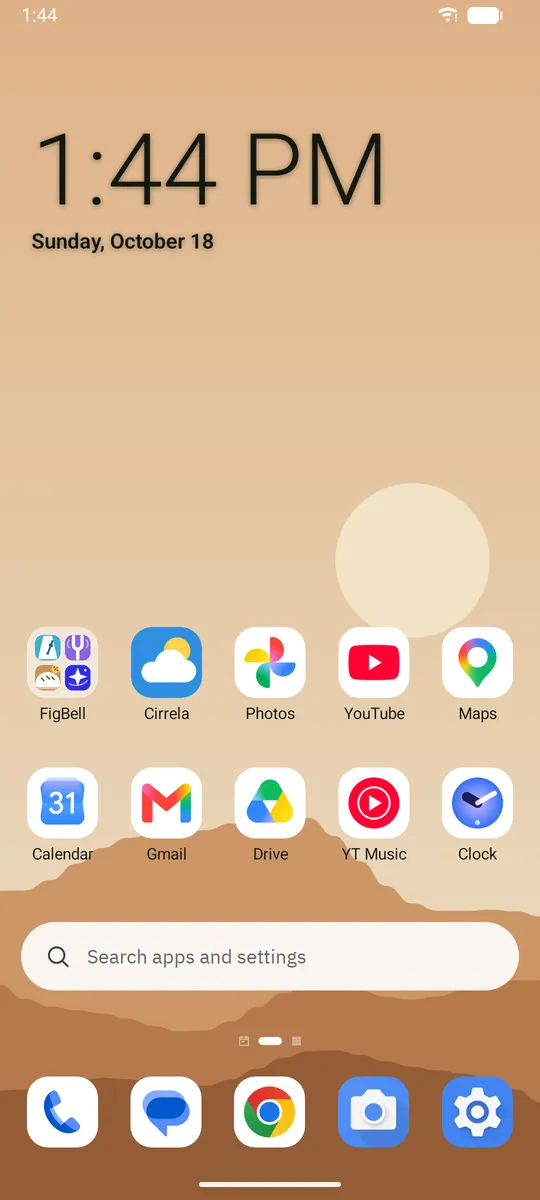
Home screen 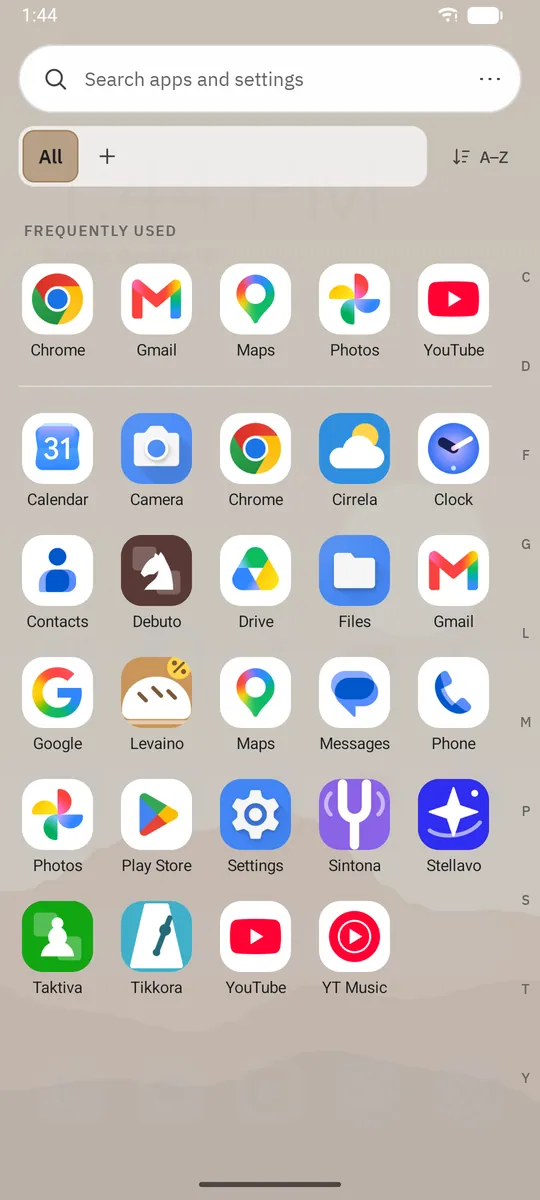
App drawer 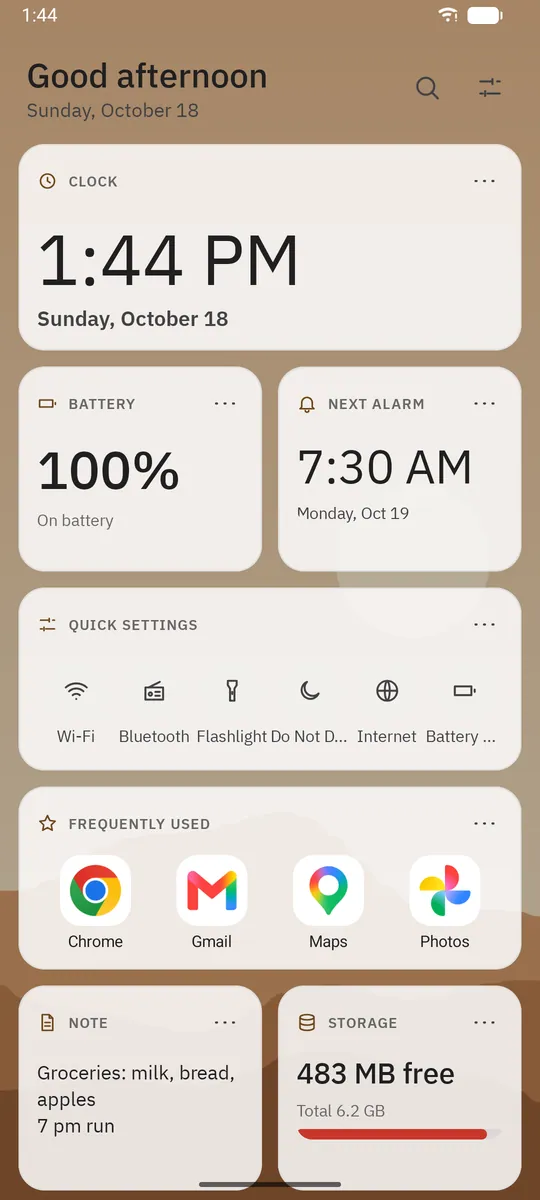
Today page 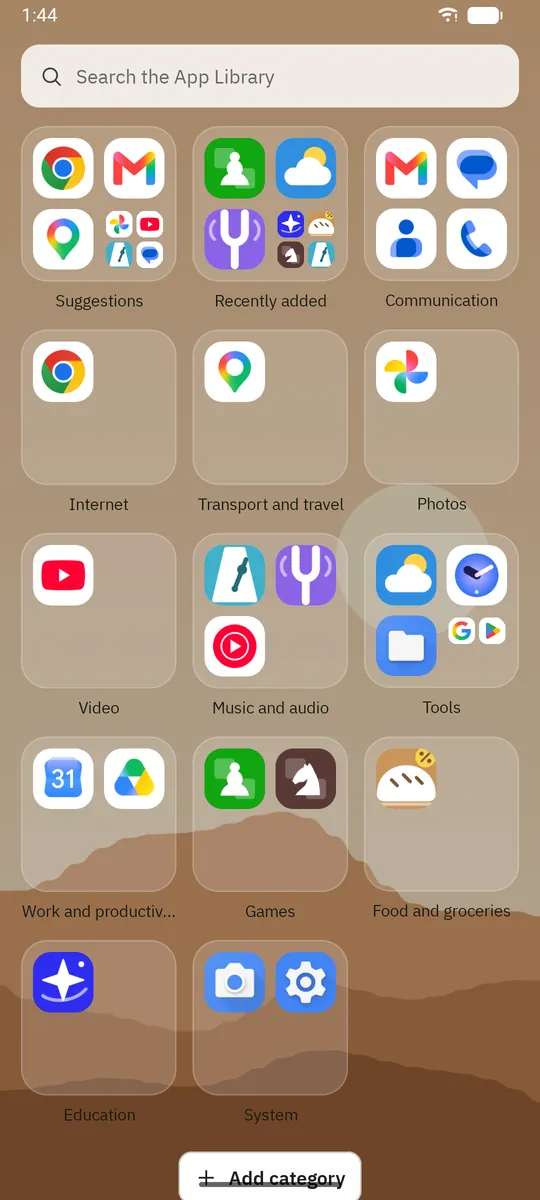
App Library 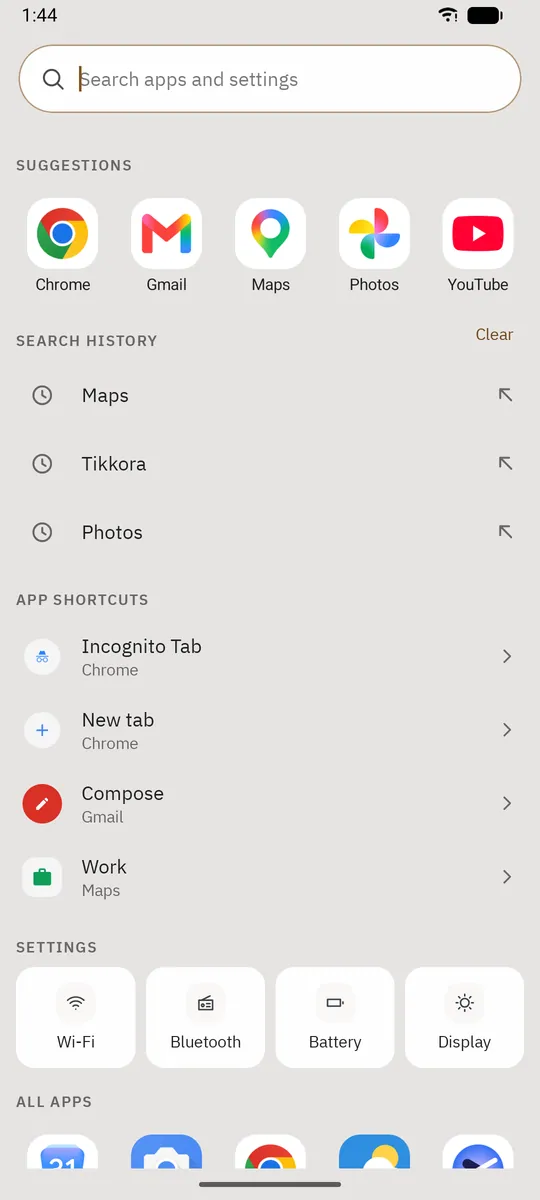
Search


Tablet
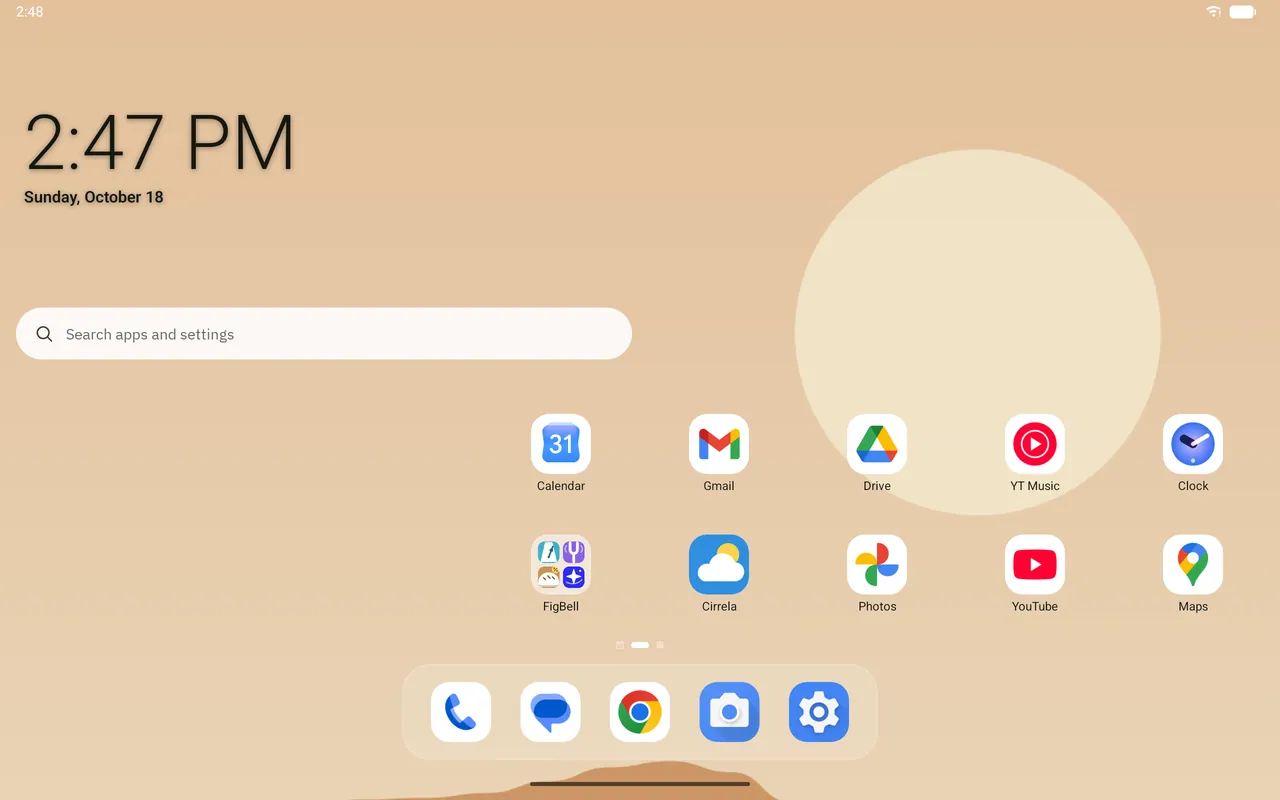
Home screen 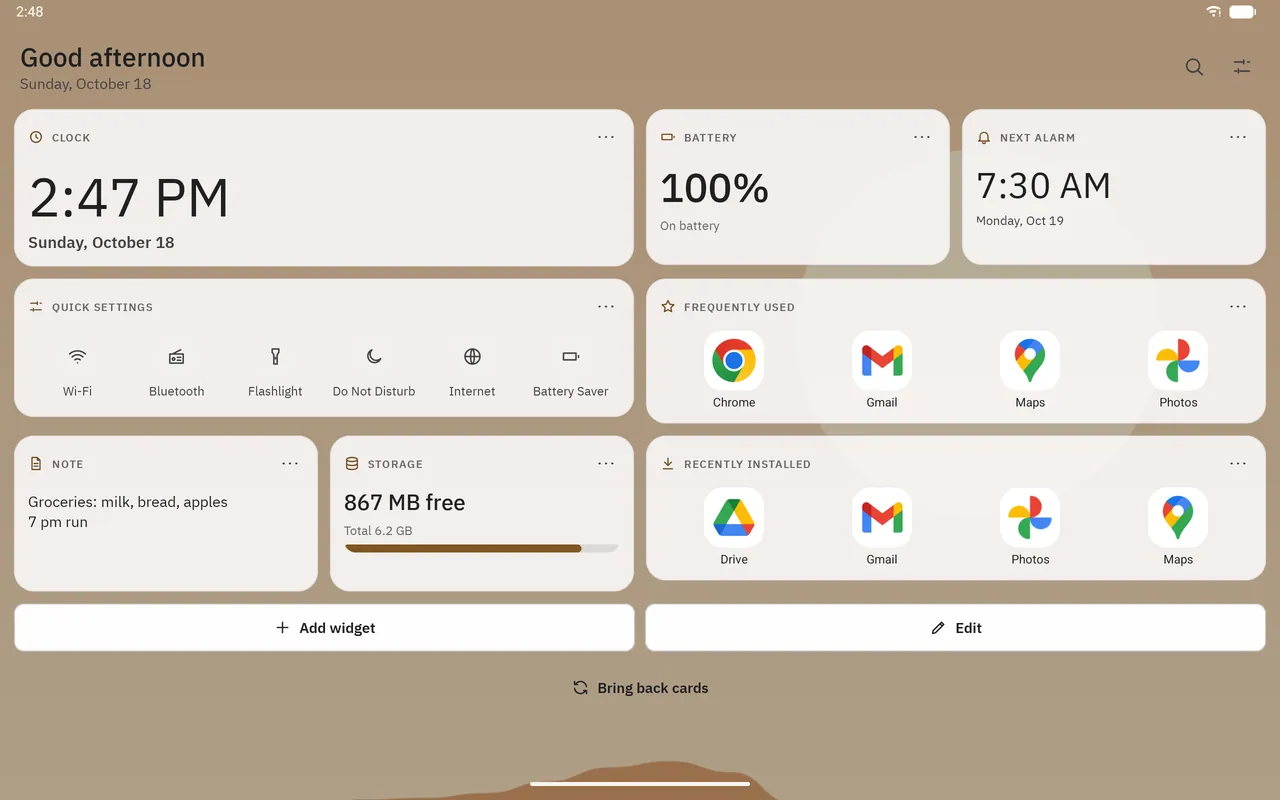
Today page 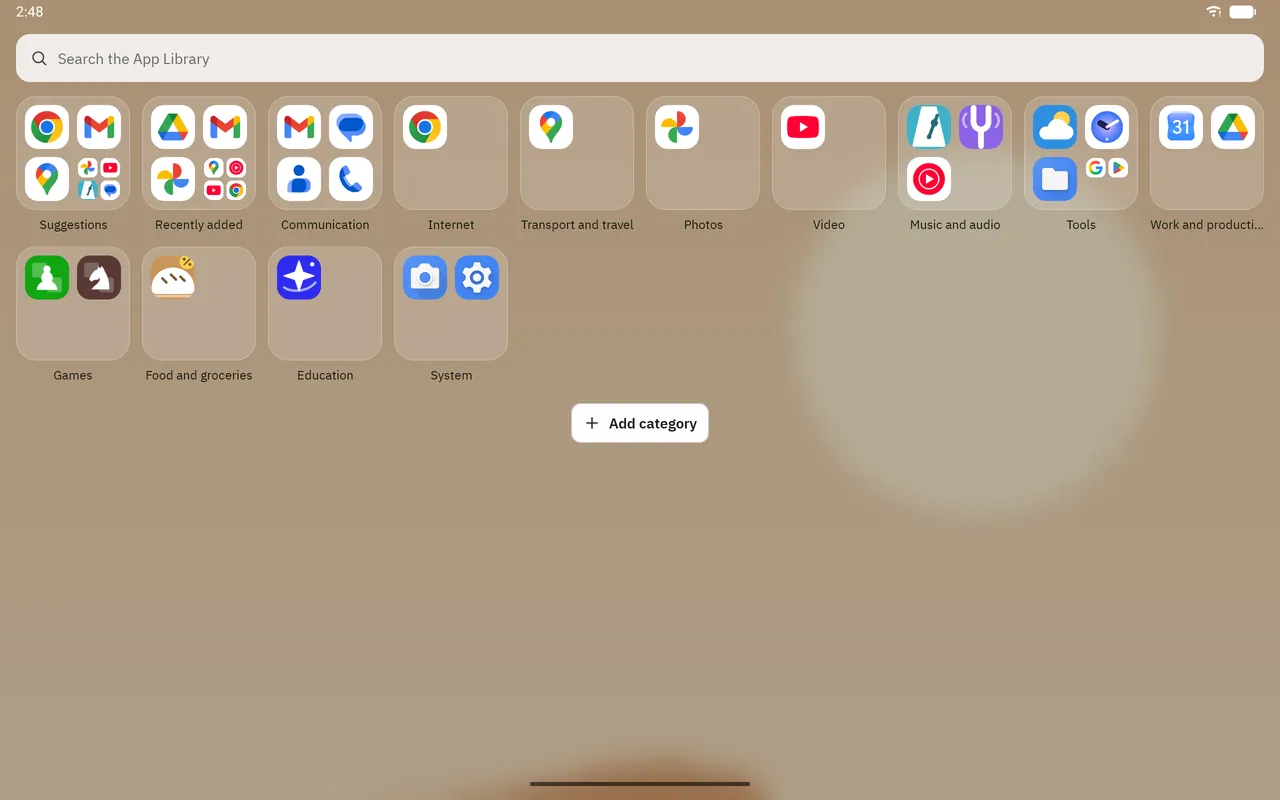
App Library


Get Dockela Launcher
Purchased once from Google Play; no ads, no subscription and no in-app purchases.
Coming soon to Google Play