Features
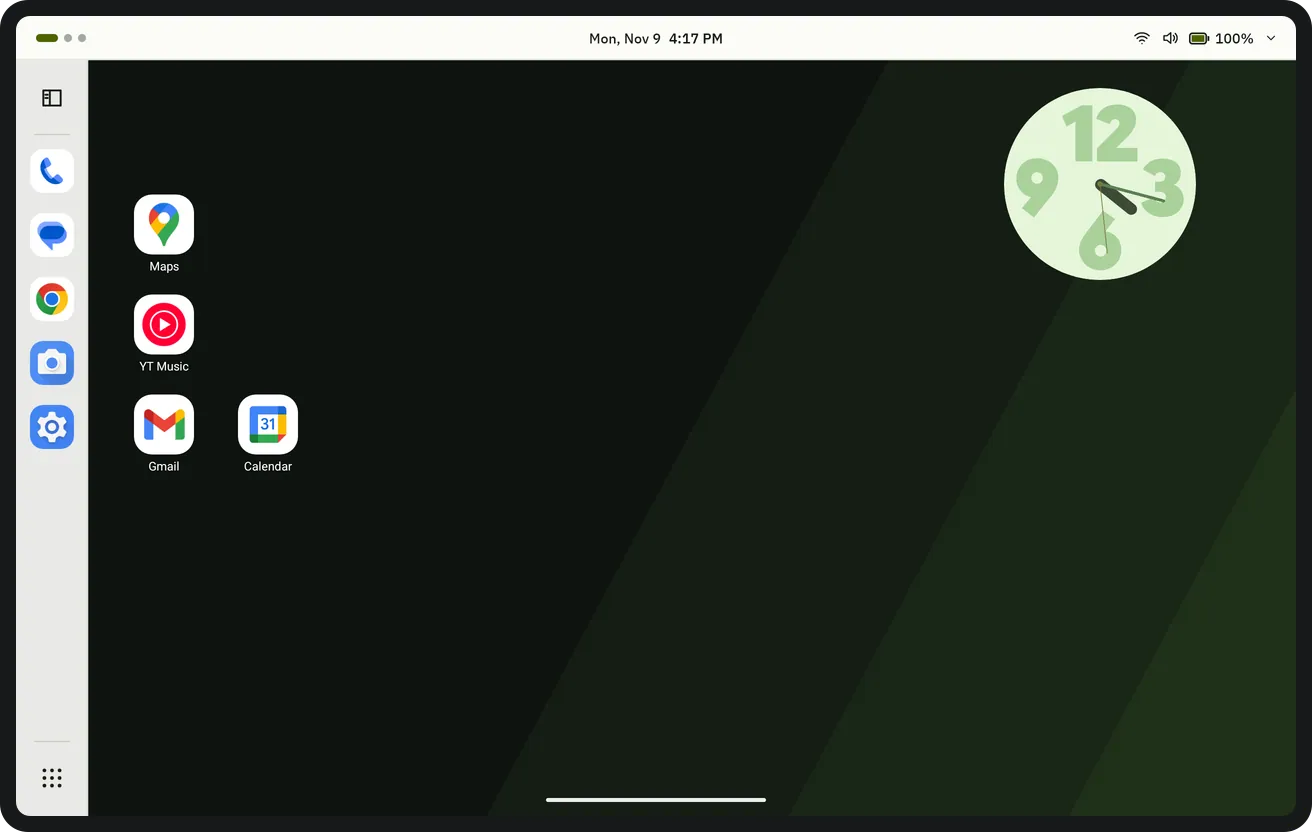
A slim bar at the top (desktop pages, date and time, system button), a vertical dock on the left and the app grid at the bottom left. The dashboard that opens from the dock shows today, the media playing, a quick note and the device status in one place. Dockela Rail has no internet permission: there are no ads, no analytics and no account, and the layout stays on this tablet only.
Key features
- A layout made for tablets
- A slim bar at the top: the dots of the desktop pages on the left, the date and time in the middle and the system button on the right. A vertical dock on the left (or at the bottom if preferred), the desktop on the right, and the app grid button at the bottom left. Seconds, date and battery can be shown or hidden in the Top bar settings.
- Dashboard
- Opens with the button at the top of the dock or with a swipe right on the dock. Cards: Today (date, next alarm and today's events from the calendar), Now playing (previous, play / pause, next), Quick note, Frequently used and Device (battery, time until full, storage). Cards can be hidden, shown and reordered; an app in the dock is added to Frequently used with “Add to dashboard”.
- System menu
- Opens with the system button in the top bar: volume, brightness, Wi-Fi, Bluetooth, Do Not Disturb, auto-rotate, lock screen and leave the launcher (choose the default home app). Brightness and rotation need the permission to modify system settings, and the Do Not Disturb tile needs separate access; without them, the tile opens the related Android setting.
- On-device search
- Opens with a swipe down on the desktop or a tap on the date and time in the top bar. Apps, app shortcuts and Dockela and Android settings are searched on this device; if wanted, the search term is handed to the browser to search there. Dockela Rail itself sends no request anywhere. The last 8 searches are kept on this device only; this can be turned off in the Privacy settings, which deletes them.
- Open side by side
- Long-pressing an app in the dock and choosing “Open an app beside…” opens the chosen second app next to the first in split screen. Some devices open the second app full screen; split screen can then be started from the system's recent apps screen.
- App grid
- Opens with the button at the bottom left, with search at the top. Apps are sorted A–Z, by most opened or by install date; vertical list or horizontal pages, number of columns, letter scroller, background opacity and blur can be set. Unwanted apps can be hidden.
- Desktop pages and folders
- Several desktop pages, each with its own icons; the page is changed with the dots in the top bar. Dropping one icon on another creates a folder; the folder icon style, background and opening can be set. Locking the layout keeps icons from being moved by accident.
- Dock
- The dock sits on the left or at the bottom; the number and size of icons can be set. With usage access, a thin line appears next to recently used apps. A long press shows app shortcuts, “Open an app beside…”, “Add to dashboard” and removing the app from the dock.
- Icons
- ADW- and Nova-compatible icon packs (appfilter.xml) are supported, and a single app's icon can also be picked from a pack. Icon shape and size, labels (automatic, white, black or hidden), label shadow, themed icons (Android 13 and later) and notification dots (only the count is read) can be adjusted.
- Wallpaper and colour
- On first launch, Rail's wallpaper with moss bands (dark or light to match the theme) can be chosen, or the current wallpaper kept; later, built-in wallpapers, a solid colour or a photo from the gallery can be chosen. Light or dark theme; chartreuse accent or a colour from the wallpaper (Android 12 and later).
- Gestures
- Swipe up, swipe down and double-tap on the desktop can be assigned actions (e.g. search, dashboard, system menu, opening an app); a swipe right on the dock (a swipe up when the dock is at the bottom) opens the dashboard. Double-tap to lock is optional and requires Android's device administrator permission, which is used only to lock the screen. Swipes from the top and side edges belong to the system and cannot be changed.
- First-run setup and backup
- On first launch, Rail is made the default home screen and the wallpaper and layout are chosen (the suggested layout or a backup file). Desktop pages, the dock, folders, dashboard cards and the quick note, hidden apps and all settings are backed up to a single file (.dockela-backup); an optional weekly backup is written to a chosen folder and the last 4 are kept.
- 20 languages
- The app is available in 20 languages, including English, Turkish, German, Spanish, French, Portuguese, Italian, Dutch, Russian, Japanese and Korean.
Devices and browsers
- Works on Android tablets only (smallest width 600 dp or more); it cannot be installed on phones.
- Portrait and landscape; the dock sits on the left or at the bottom.
- Requires Android 8.0 or later. The accent colour from the wallpaper (Material You) requires Android 12, themed icons Android 13 or later.
- Dockela Rail is for Android only; there is no web, desktop, iPhone or iPad version. For phones, there are Dockela and Dockela Quiet.
Tablet
Home screen 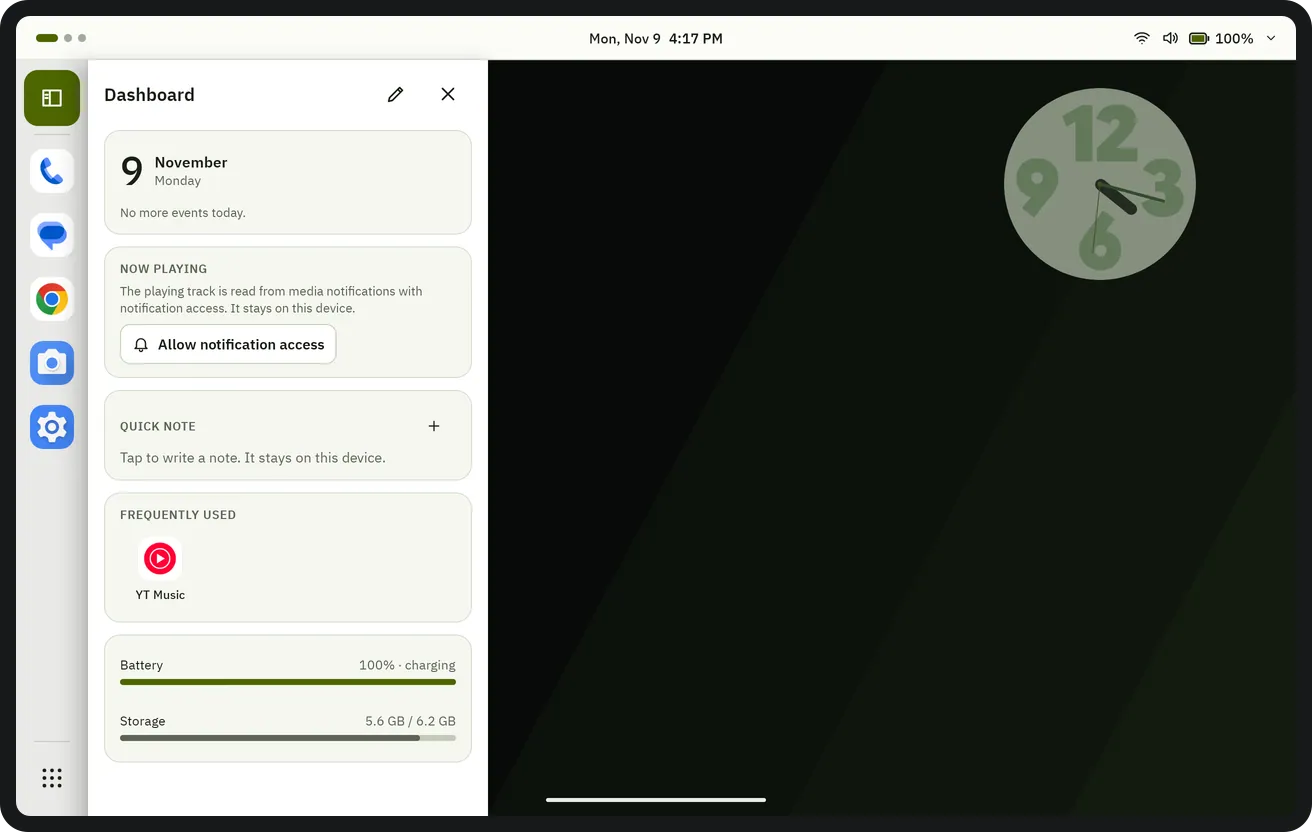
Dashboard 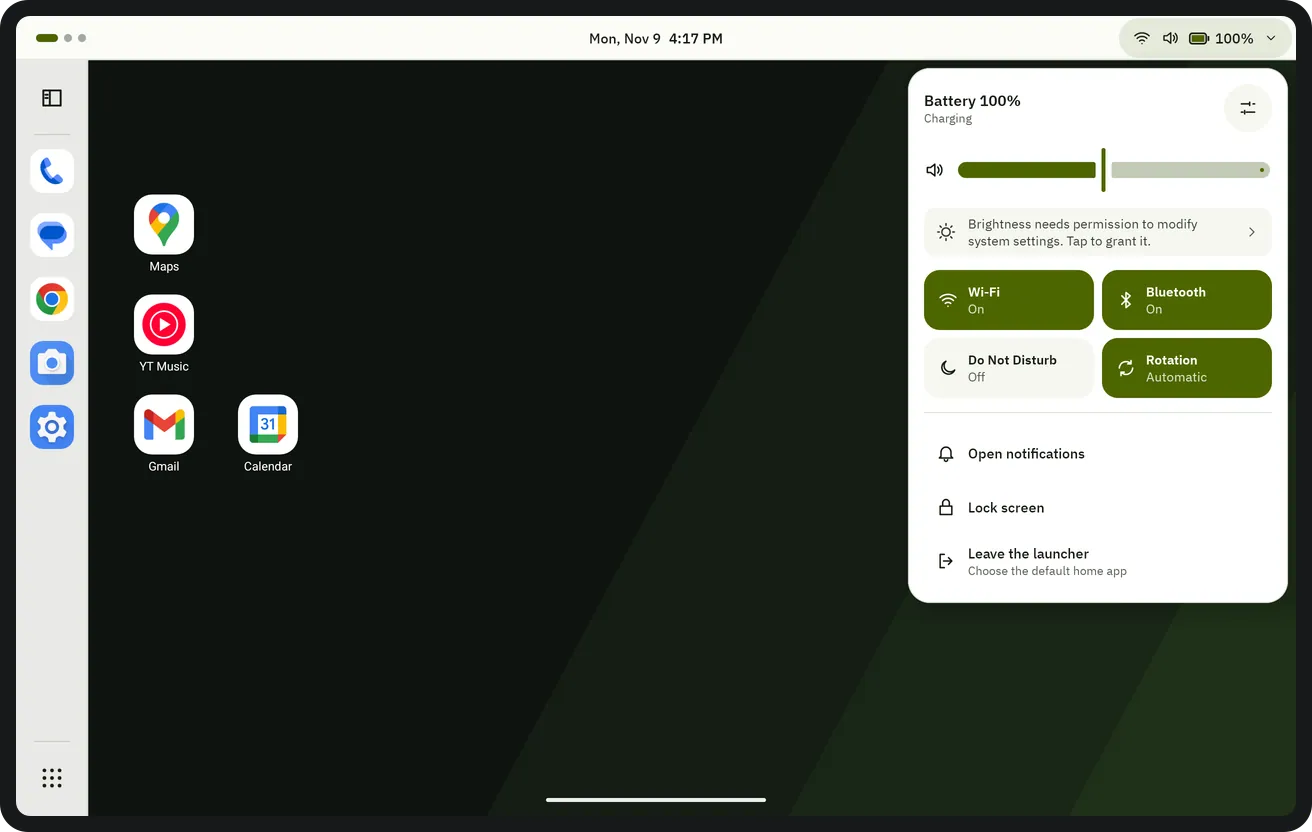
System menu 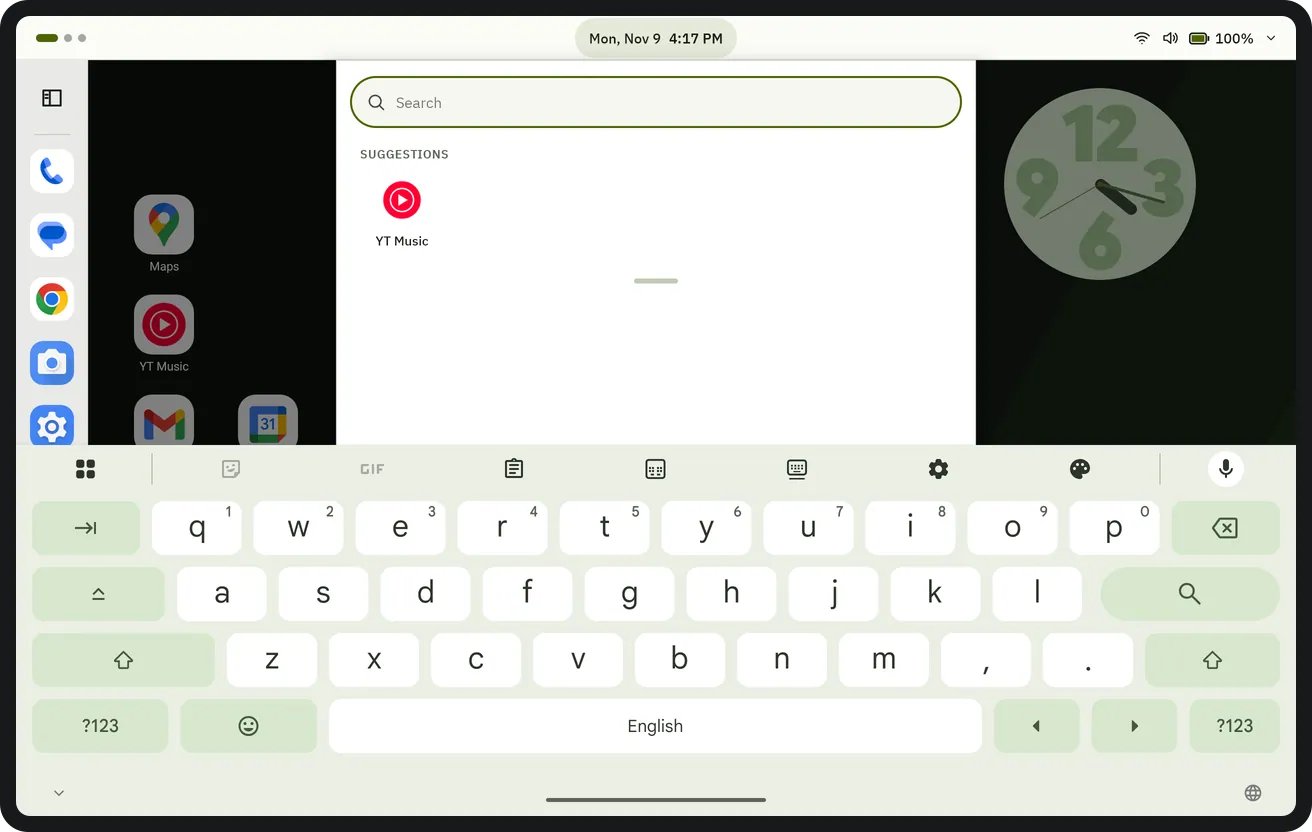
Search 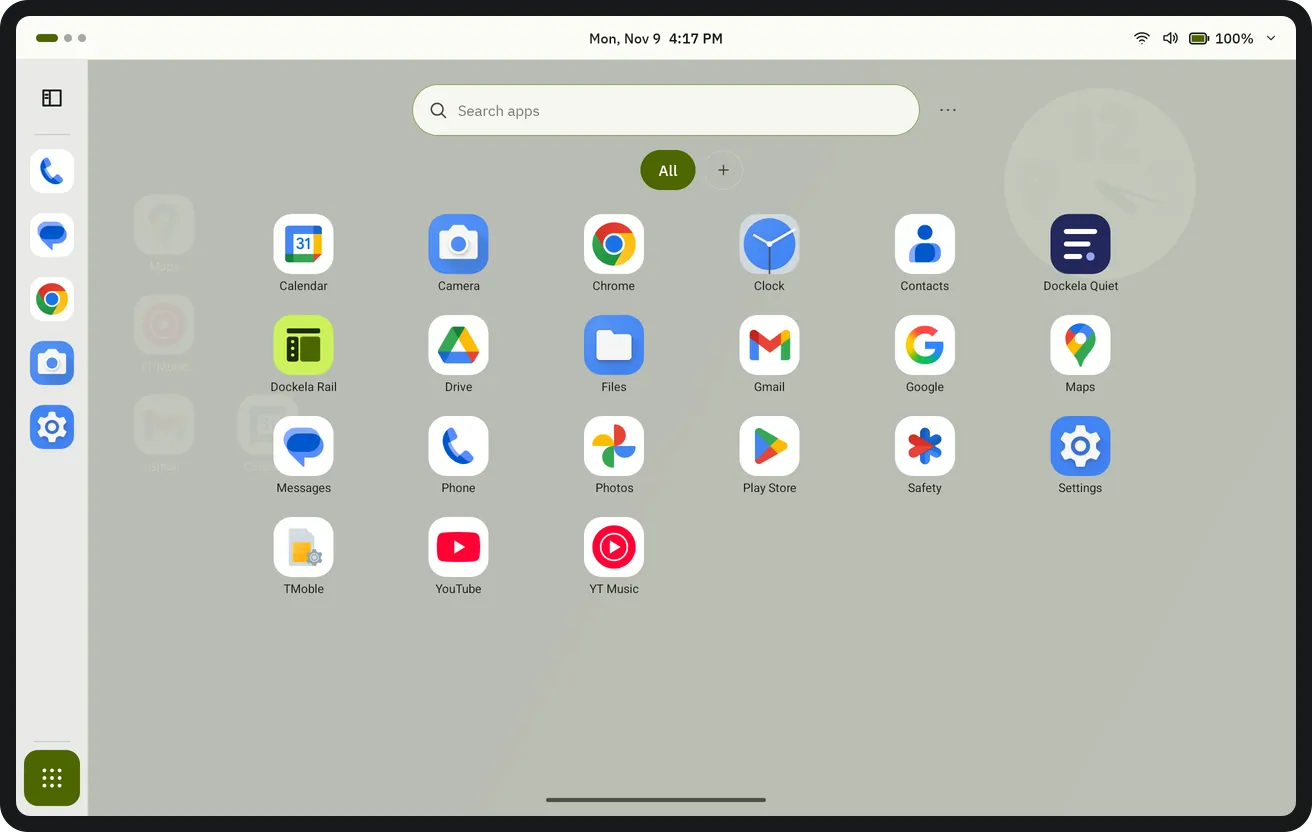
App grid 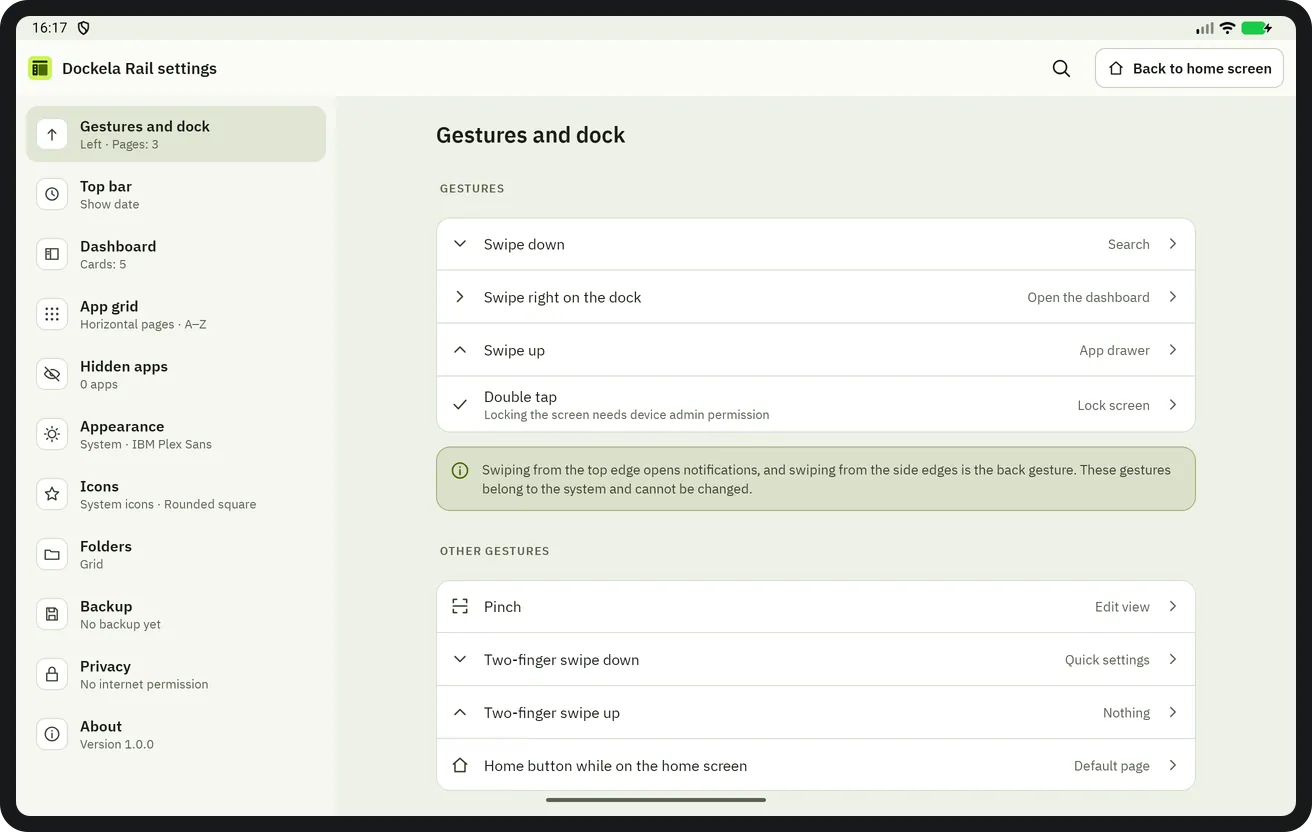
Settings


Get Dockela Rail
Purchased once from Google Play; no ads, no subscription and no in-app purchases.
Coming soon to Google Play