A home screen designed for tablets.
A slim bar at the top (desktop pages, date and time, system button), a vertical dock on the left and the app grid at the bottom left. The dashboard that opens from the dock shows today, the media playing, a quick note and the device status in one place. Dockela Rail has no internet permission: there are no ads, no analytics and no account, and the layout stays on this tablet only.
$0.99One-time purchase14-day refund
Tablet
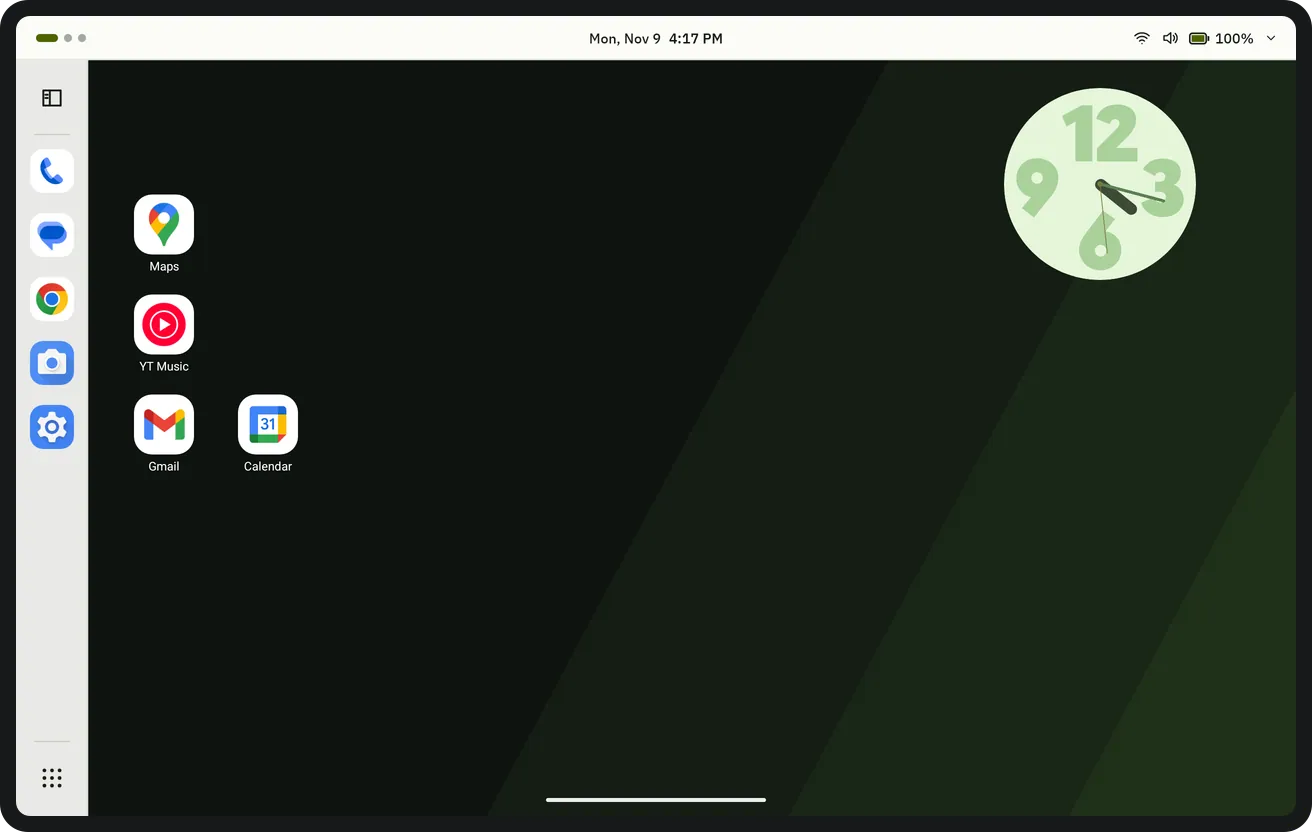
Home screen 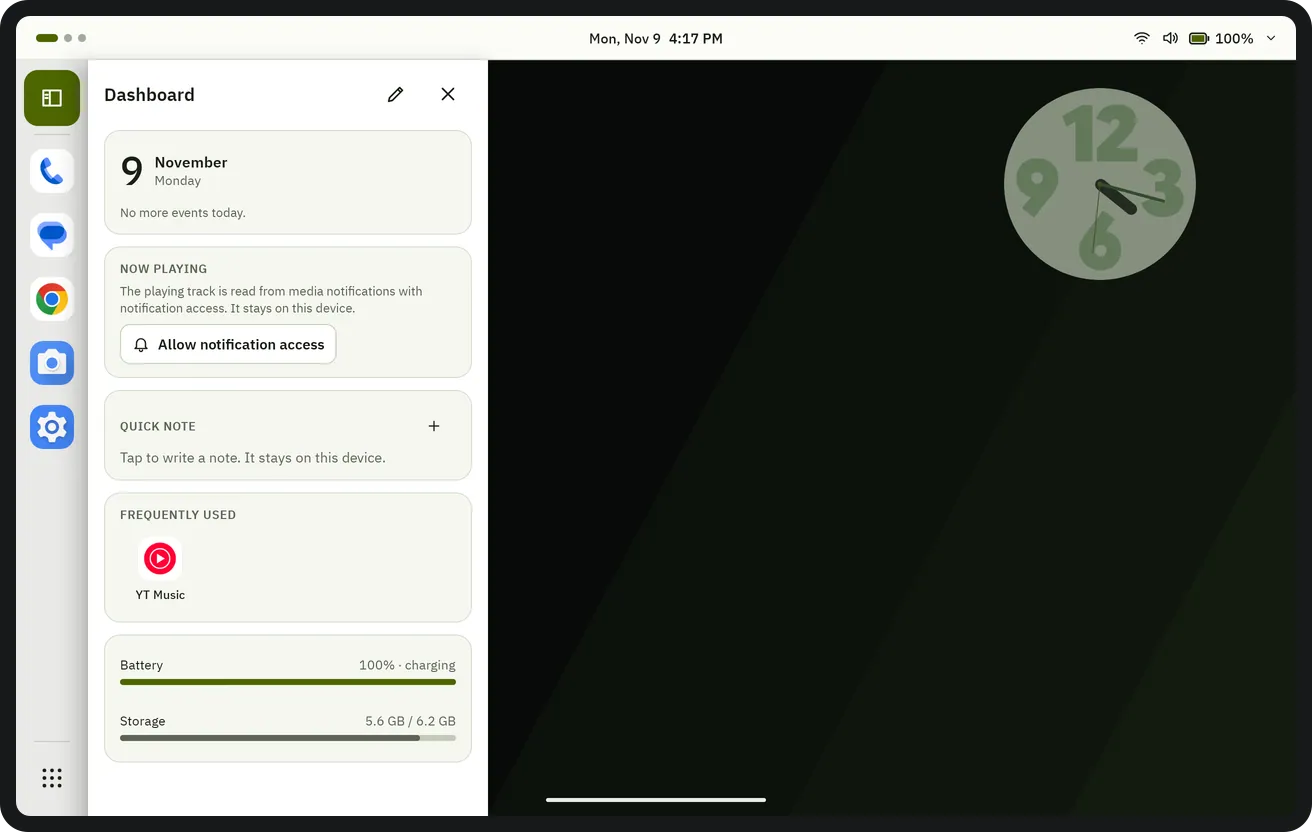
Dashboard 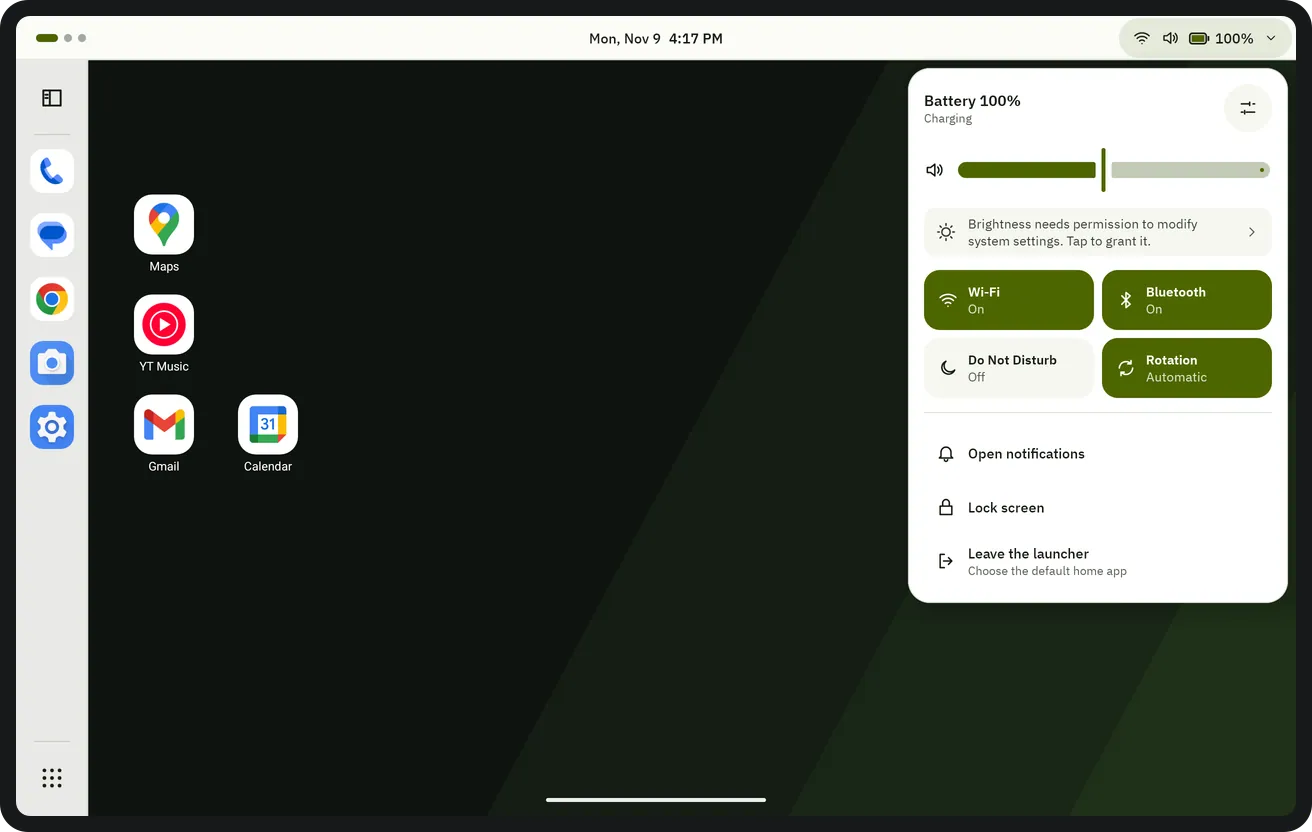
System menu 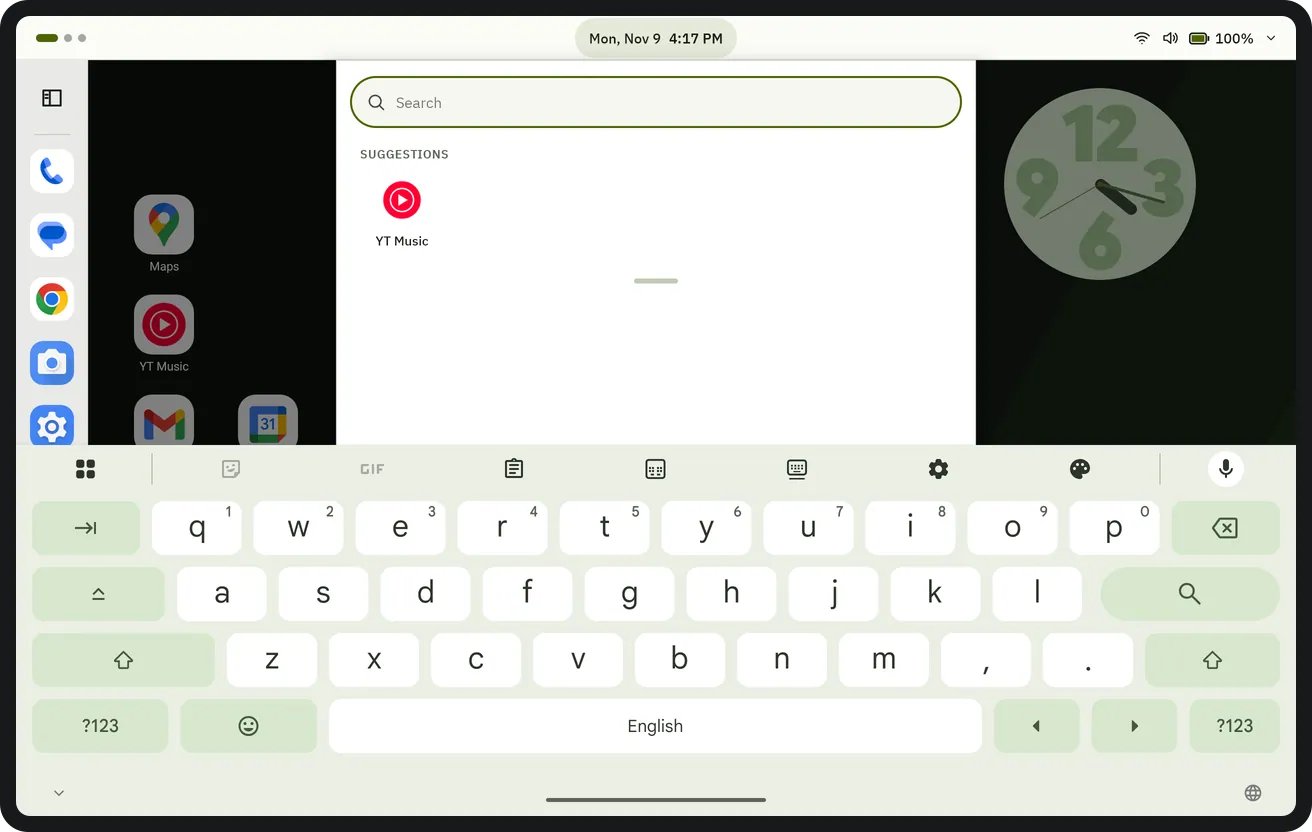
Search 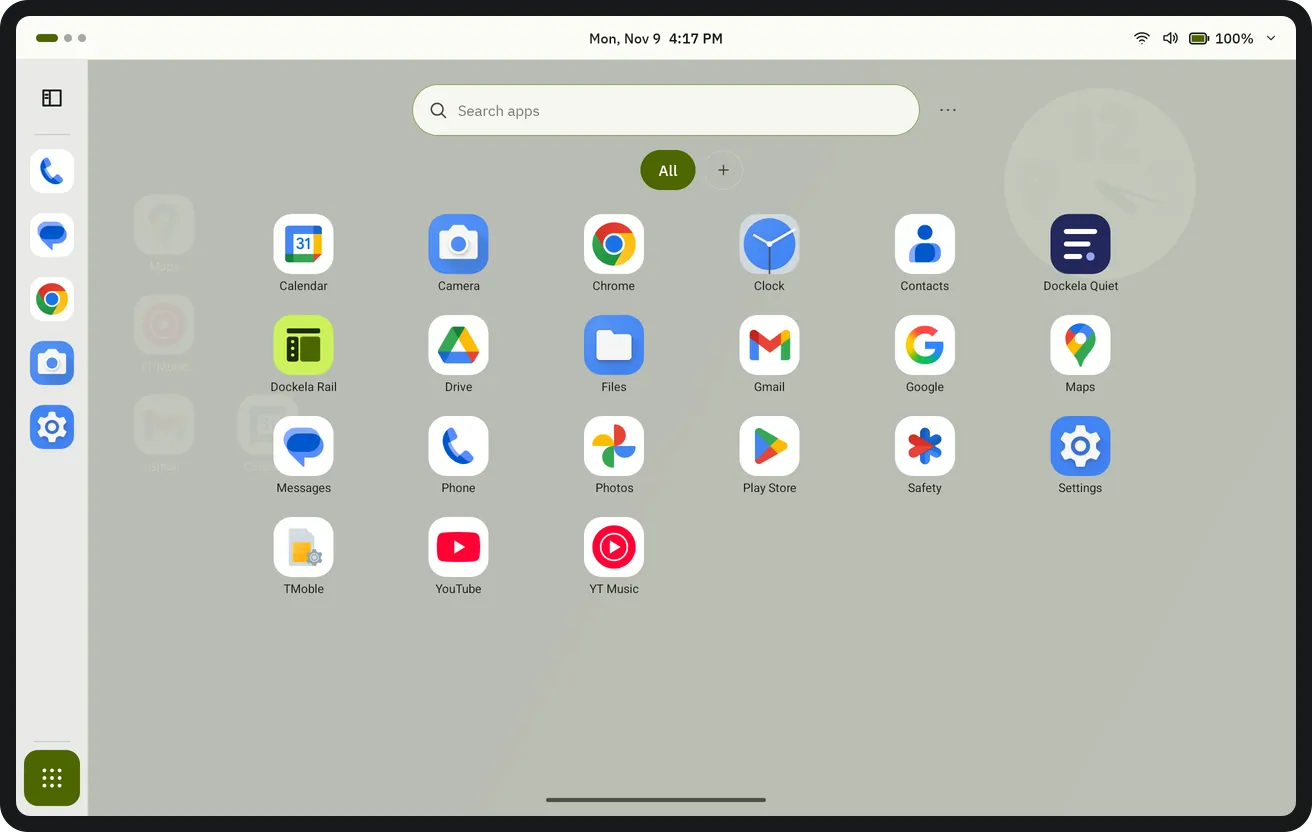
App grid 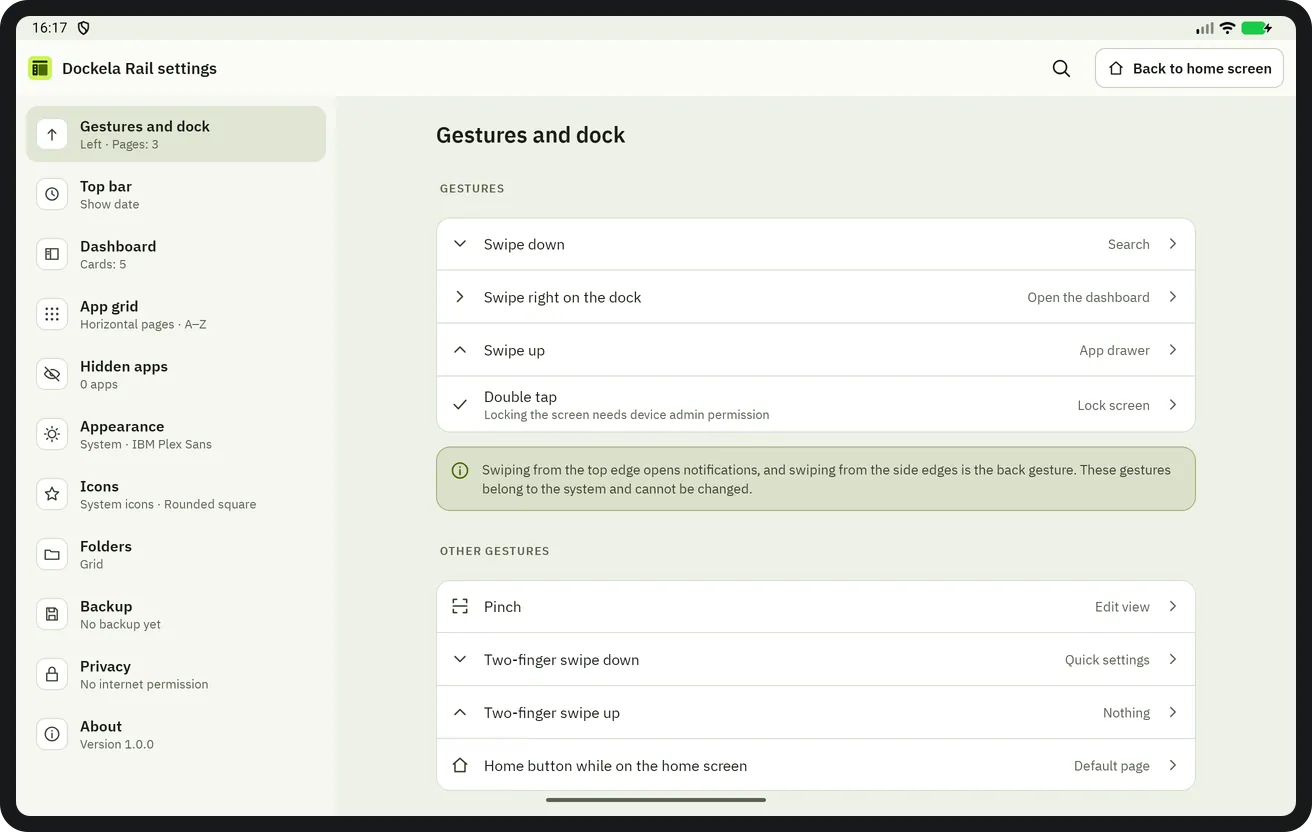
Settings


Key features
- A layout made for tablets
- A slim bar at the top: the dots of the desktop pages on the left, the date and time in the middle and the system button on the right. A vertical dock on the left (or at the bottom if preferred), the desktop on the right, and the app grid button at the bottom left. Seconds, date and battery can be shown or hidden in the Top bar settings.
- Dashboard
- Opens with the button at the top of the dock or with a swipe right on the dock. Cards: Today (date, next alarm and today's events from the calendar), Now playing (previous, play / pause, next), Quick note, Frequently used and Device (battery, time until full, storage). Cards can be hidden, shown and reordered; an app in the dock is added to Frequently used with “Add to dashboard”.
- System menu
- Opens with the system button in the top bar: volume, brightness, Wi-Fi, Bluetooth, Do Not Disturb, auto-rotate, lock screen and leave the launcher (choose the default home app). Brightness and rotation need the permission to modify system settings, and the Do Not Disturb tile needs separate access; without them, the tile opens the related Android setting.
- On-device search
- Opens with a swipe down on the desktop or a tap on the date and time in the top bar. Apps, app shortcuts and Dockela and Android settings are searched on this device; if wanted, the search term is handed to the browser to search there. Dockela Rail itself sends no request anywhere. The last 8 searches are kept on this device only; this can be turned off in the Privacy settings, which deletes them.
- Open side by side
- Long-pressing an app in the dock and choosing “Open an app beside…” opens the chosen second app next to the first in split screen. Some devices open the second app full screen; split screen can then be started from the system's recent apps screen.
- App grid
- Opens with the button at the bottom left, with search at the top. Apps are sorted A–Z, by most opened or by install date; vertical list or horizontal pages, number of columns, letter scroller, background opacity and blur can be set. Unwanted apps can be hidden.
Data processing and privacy
Dockela Rail has no internet permission; Android does not allow an app without this permission to connect to a network. There are no ads, no analytics and no account. The desktop layout, dock, dashboard cards, quick note, open counts, search history and settings stay on this tablet only. Calendar (today's events on the dashboard), notification access (notification dot counts and the title of the track playing; notification contents are not read), usage access (the recently used lines in the dock), modify system settings (brightness and rotation), Do Not Disturb access and device administrator (double-tap to lock only) permissions are optional.
Get Dockela Rail
Purchased once from Google Play; no ads, no subscription and no in-app purchases.